
We use cookies to ensure that you get the best experience on our website. Click here to learn more. Got it

iOS System Recovery

Fix 200+ iPhone/iPad System Issues Without Data Loss

  • Fix various iOS/iPados issues like iPhone black screen, Apple logo stuck, boot loop without losing data.
  • Easily upgrade to iOS 26 or downgrade from iOS 26 to iOS 18 without jailbreaking.
  • Enter or exit Recovery Mode on iPhone and iPad with one click, completely free.
  • Works with all iOS versions and devices, including iPhone 17 and iOS 26/18.
For Windows 10/8.1/8/7/Vista/XP
For Mac OS X 10.9 - Mac OS X 10.15
Avalibable for:

FoneGeek iOS System Recovery is an iOS system recovery program that can be used to fix the iOS system of any iOS device.

FoneGeek iOS System Recovery can help you recover your Apple devices to normal when they develop faults.

FoneGeek iOS system recovery tool for Windows and Mac helps users resolve any issue with their iPhone and iPad without losing data. It is a trustworthy solution for every beginner and professional.

Fix 200+ iOS/iPadOS/tvOS System Issues at Home

FoneGeek iOS System Recovery tool can fix over 200 iOS, iPadOS, and tvOS issues without data loss. With just a few simple clicks, you can restore your iPhone/iPad to normal and enjoy a smoother experience.

  • System Issues
  • Screen Issues
  • Device Issues
  • iTunes & Update Issues
  • Feature Issues
    • iPhone Stuck on Apple Logo

      iPhone Boot Loop

      iPhone Stuck in Recovery Mode

      iPhone Stuck in DFU Mode

    • iPhone Update Failed

      iPhone Restore Failed

      iPhone Stuck on Loading Screen

      iPhone Stuck on Progress Bar during Update

    • iPhone Black Screen

      iPhone White Screen of Death

      iPhone Green Screen

      iPhone Screen Flickering

    • iPhone Screen Not Responding to Touch

      iPhone Frozen Screen

      iPhone Screen Stuck on Zoom

      iPhone Display Glitch after Update

    • iPhone Keeps Restarting randomly

      iPhone Overheating

      iPhone Battery Draining Fast

      iPhone Running Slow after Update

    • iPhone Apps Keep Crashing

      iPhone Lagging or Freezing Frequently

      iPhone Storage Full Error

    • iTunes Error 4013

      iTunes Error 4014

      iTunes Error 9

      iTunes Error 14

    • iPhone Not Recognized by iTunes

      iPhone Cannot Restore via iTunes

      iPhone Stuck During Firmware Download

    • iPhone WiFi Not Working

      iPhone Bluetooth Not Connecting

      iPhone Cellular Data Not Working

      iPhone GPS Not Accurate

    • iPhone Face ID Not Working

      iPhone Stuck on AirDrop Waiting

      iPhone Cannot Activate

Keep Your Data

Quickly Fix iOS/iPadOS/tvOS, No Data Loss

Unlike repair methods that use iTunes, FoneGeek iOS System Recovery lets you fix iOS issues on your iPhone or iPad without losing any data. Simply connect your device to the computer, and resolve the issue in just a few clicks.

Quickly Fix iOS/iPadOS/tvOS, <i>No Data Loss</i>
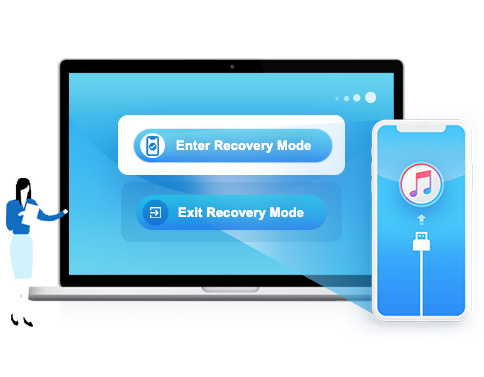
Enter/Exit Recovery Mode on iPhone/iPad <i>Totally Free</i>
Free & One Click

Enter/Exit Recovery Mode on iPhone/iPad Totally Free

Is your iPhone or iPad unable to enter Recovery Mode, or stuck in it? FoneGeek iOS System Repair tool lets you easily enter or exit Recovery Mode with just one click - without causing any data loss.

No iTunes/Finder

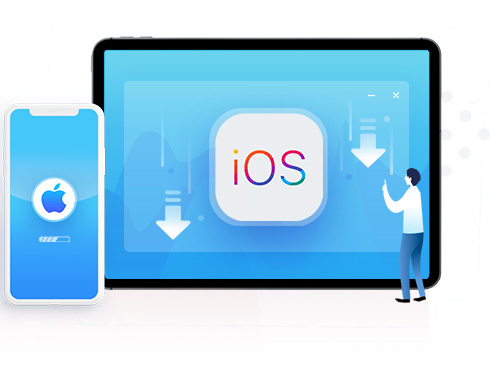
Downgrade or Upgrade iOS/iPadOS 26 No Jailbreak

FoneGeek iOS System Recovery offers the simplest way to downgrade from iOS 26 to 18 without losing any data - just one click to return to the previous stable version.

tipsOnly Support Downgrading to Apple Signed Firmware
Downgrade or Upgrade iOS/iPadOS 26 <i>No Jailbreak</i>

Benefits of FoneGeek iOS System Recovery

We Are Trusted & Recommended

logo
FoneGeek iOS System Recovery software is undoubtedly one of the best iOS system repair tools on the market. Developed by the FoneGeek Software company, this tool is meant to be a simple, yet highly reliable solution to resolve any iPhone or iPad issues without affecting any of the data on the device.

starstarstarstarstar

logo
FoneGeek Software provides an all-in-one solution package to all possible iPhone errors and problems. Whether it is an iPhone stuck in recovery mode or not able to boot properly, iOS system recovery can detect and fix the problem without any assistant for professional help.

starstarstarstarstar

logo
FoneGeek iOS System Recovery is a desktop app designed to solve almost all iPhone, iPad, and iPod touch issues. So, it can handle errors iTunes can't. It's engineered to address hundreds of devices, screens, modes, iTunes, and update problems without the help of a professional technician. Getting out of a frozen screen, downgrading a version without jailbreaking, and completing a software update are some examples.

starstarstarstarstar

logo
FoneGeek iOS System Recovery is a simple yet reliable tool that can be useful when dealing with different kinds of iOS system and stuck issues on your iPhone, iPad or iPod touch.

starstarstarstarstar

logo
FoneGeek iOS System Recovery tool is helpful to get your iPhone fixed and running smoothly again. It's designed to resolve numerous iPhone problems, including a stuck iPhone at the point of showing the Apple logo.

starstarstarstarstar

logo
The majority of iOS issues can be repaired using a simple software – FoneGeek iOS System Recovery. Among all the iOS repair solutions, FoneGeek appears to be the most cost-effective, versatile, and easy to use.

starstarstarstarstar

  • logo
  • logo
  • logo
  • logo
  • logo
  • logo

Fix iOS, iPadOS, or tvOS System Issues in Just 3 Steps

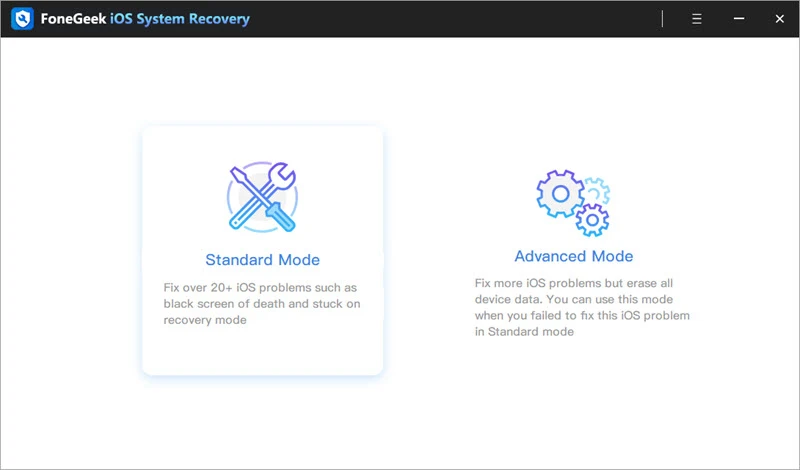
  • 1. Choose Repair Mode

    Choose "Standard Mode" and connect your iPhone to the computer via USB cable.

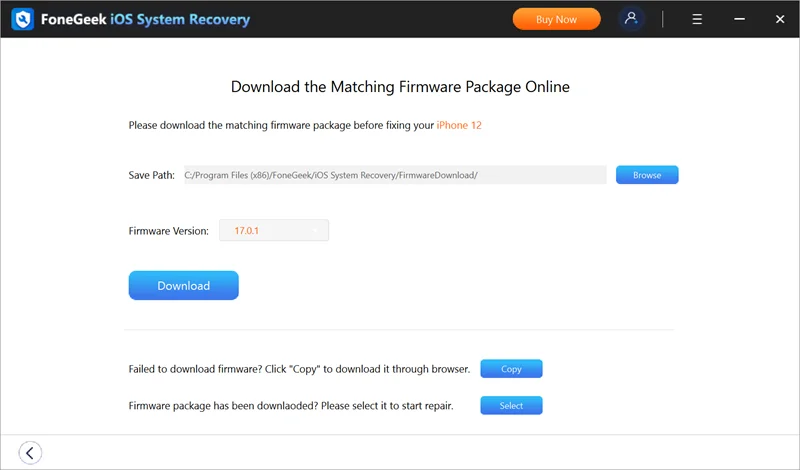
  • 2. Download Firmware Package

    Choose the firmware version that matching your device and then click "Download".

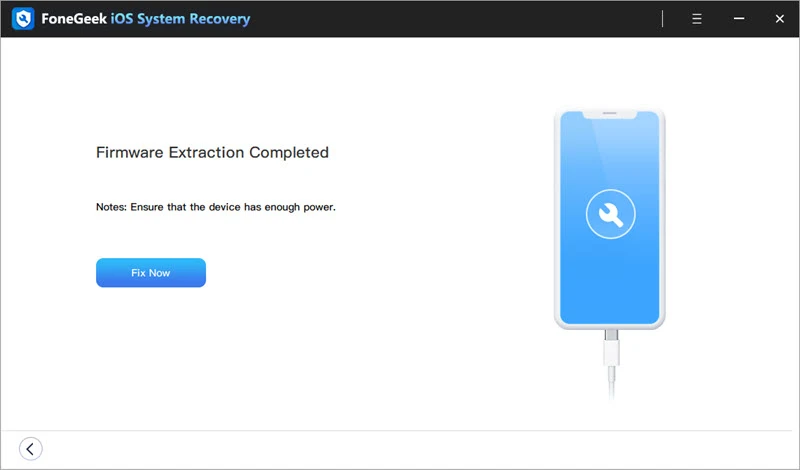
  • 3. Fix Your iPhone or iPad

    Once the firmware package is downloaded, click "Fix Now" to start system recovery.

1. Choose Repair Mode
2. Download Firmware Package
3. Fix Your iPhone or iPad

Tech Specs

Supported iPhone:
  • iPhone 17 (Air)
  • iPhone 17 Pro (Max)
  • iPhone 16 (Plus)
  • iPhone 16 Pro (Max)
  • iPhone 15 (Plus)
  • iPhone 15 Pro (Max)
  • iPhone 14 (Plus)
  • iPhone 14 Pro (Max)
  • iPhone 13 (mini)
  • iPhone 13 Pro (Max)
  • iPhone 12 (mini)
  • iPhone 12 Pro (Max)
  • iPhone SE 3/2
  • iPhone 11/8/7...
  • Supported iPad:

    All iPad, iPad Mini, iPad Air, iPad Pro models.

  • Supported iPod Touch:

    iPod Touch 7/6/5/4/3/2, etc.

Supported iOS Versions:

iOS 26, iOS 18, iOS 17, iOS 16, iOS 15, iOS 14, iOS 13, iOS 12, iOS 11, iOS 10, iOS 9 and former.

FAQs
  • What's the difference between the 2 repair modes?
    • Standard Mode: This repair mode is helpful to fix most common iOS issues without causing any data loss.
    • Advanced Mode: This mode can be used to fix issues that the Standard Mode failed to work. However, all the data on the device will be erased.
  • Why is it necessary to put my device into DFU or Recovery mode?

    DFU or Recovery Mode are set by Apple to repair iOS system.

    To fix iOS system problem with the most effective way, you should put your iPhone into DFU or Recovery mode. What’s more, when the device cannot be deteced, DFU/Recovery mode will get the device successfully recognized by our program.

  • How do I know if my iOS device is supported or not?
    • First of all, download FoneGeek iOS System Recovery on your computer and launch it.

    • Choose the repair mode and connect your iPhone/iPad to computer.

    • If the device can be supported by the program, you will be able to click on "Start" to proceed.

    • If else, the message of "Your Device Is Not Supported" will be displayed.

  • Can FoneGeek iOS System Recovery fix all iOS issues?

    With FoneGeek iOS System Recovery, you can fix almost all iOS issues without the help of a technical specialist, such as:

    • iPhone black/white screen of death.

    • iPhone stuck on Apple logo, Recovery/DFU mode.

    • iOS upgrade/downgrade failure issue.

    • iPhone stuck on boot loop/won’t turn on or device is frozen.

    • iPad, iPod touch or Apple TV issues.

  • Will my device data be affected after using FoneGeek iOS System Recovery?

    Your device data will not get lost when you use the Standard Mode while the Advanced mode will erase all the device data.

Get FoneGeekiOS System RecoveryNow

One-click to fix various iOS issues like iPhone stuck at white Apple logo, boot loop, etc.

Appoword by

Copyright © 2025 FoneGeek Software Co., Ltd. All Rights Reserved